

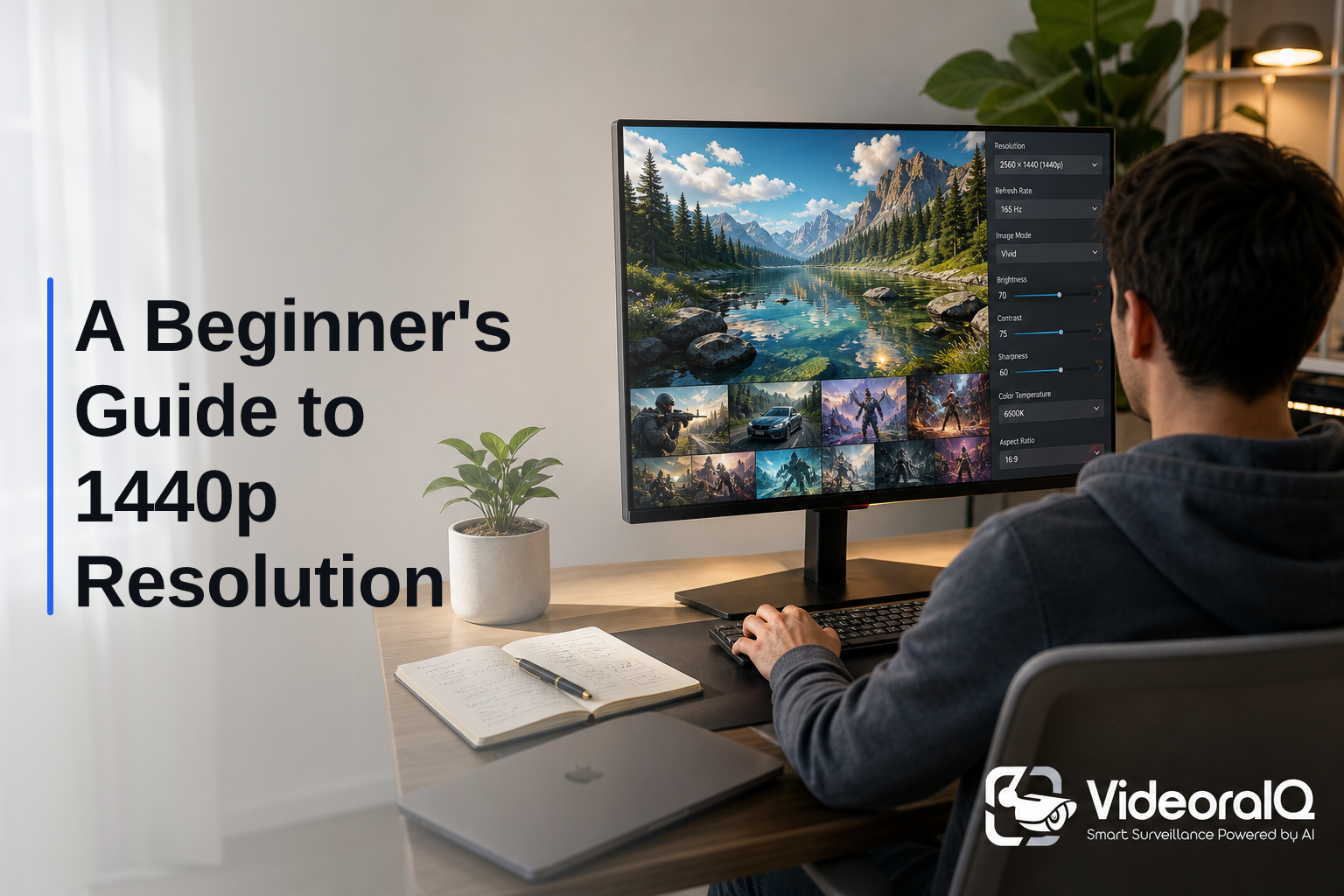
1440p packs 3,686,400 pixels, 78% more detail than 1080p. This beginner guide 1440p resolution explains if QHD hits the sweet spot for your eyes, gear, and budget in 2026.
Here’s the short answer most people want: 1440p (also called QHD) gives a clear step up in sharpness over Full HD without the heavy cost and hardware strain of 4K. On a 27-inch screen at arm’s length, text looks crisper, edges look cleaner, and games gain detail while staying smooth on mid-range GPUs. If you work across many windows, edit photos, or play fast-paced games, it’s a balanced upgrade.
However, raw specs don’t pick the right screen for you, your use case, desk space, and hardware do. In this guide, you’ll learn how 1440p works, how to decide if it fits your setup, what mistakes to avoid, and where it shines in real work.
What Exactly Is 1440p Resolution?
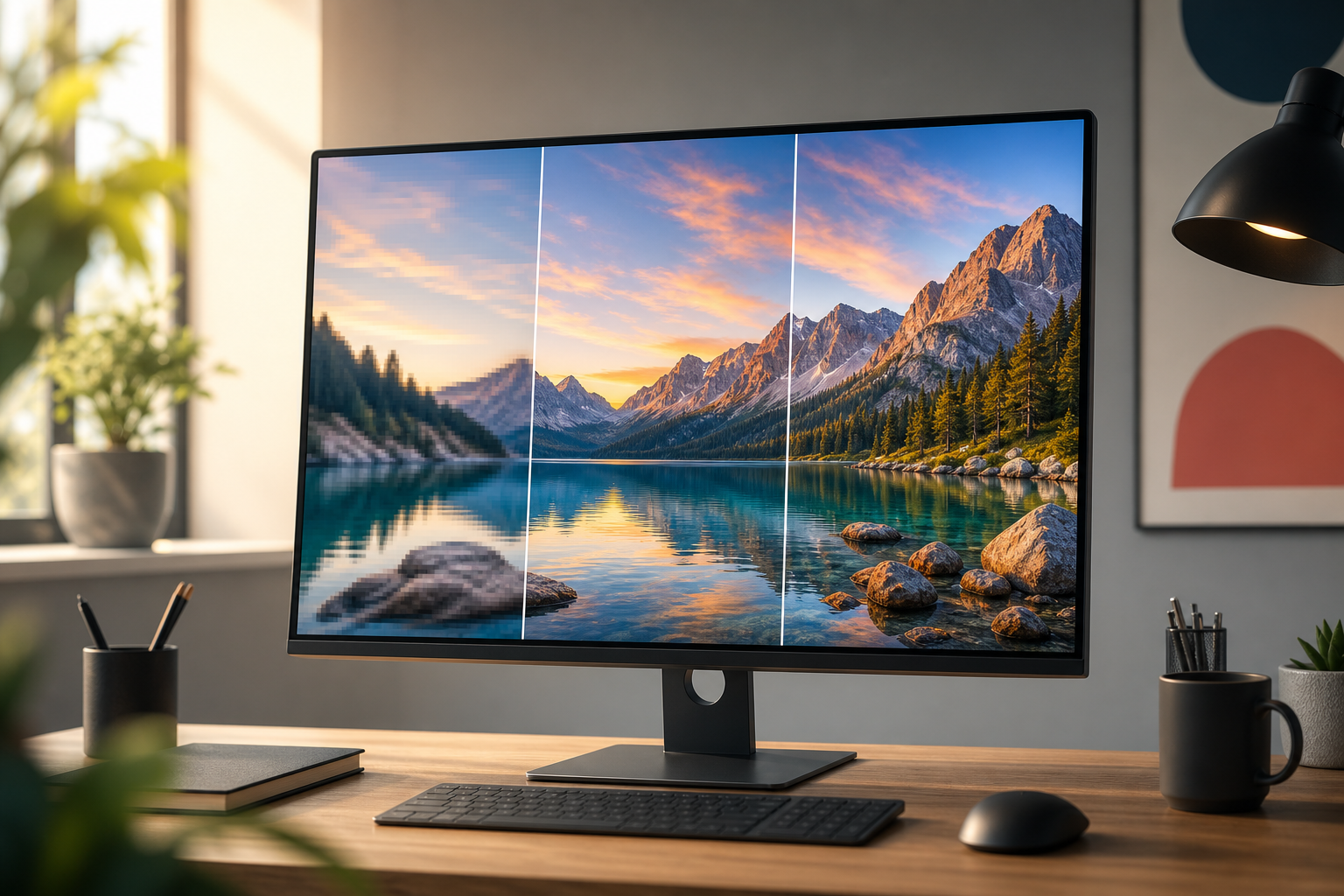
1440p is a display resolution of 2560×1440 pixels. That comes to 3,686,400 total pixels. Compared to Full HD (1920×1080, or 2,073,600 pixels), it shows 78% more picture detail. Think of it like upgrading from a paperback print to a sharp magazine, letters and lines look cleaner, and small UI elements stay readable without zooming.
The “p” stands for progressive scan, which draws the whole frame in one pass. The “1440” refers to the count of pixels along the vertical edge. You may also see “QHD” or “WQHD.
QHD means “Quad HD,” because it has four times the pixels of 1280×720. WQHD means “Wide Quad HD,” the common 16:9 version used by most monitors. In casual use, QHD and 1440p usually point to the same 2560×1440 standard.
Moreover, the 16:9 aspect ratio matches most streaming video and games, so you won’t get black bars or weird scaling with standard content. That makes 1440p an easy drop-in for home, office, and gaming desks.
For a deeper dive into naming and history, see Wikipedia’s 1440p entry. It explains how 720p, 1080p, and 1440p line up and why the industry adopted vertical labels.
Aspect Ratio and Pixel Math
- 1080p (1920×1080): 2,073,600 pixels
- 1440p (2560×1440): 3,686,400 pixels
- 4K UHD (3840×2160): 8,294,400 pixels
Therefore, 1440p gives you:
- 78% more pixels than 1080p
- About 56% fewer pixels than 4K UHD
| Resolution | Dimensions | Total Pixels | Difference vs 1080p |
|---|---|---|---|
| 1080p | 1920×1080 | 2.07 million | , |
| 1440p | 2560×1440 | 3.69 million | +78% |
| 4K UHD | 3840×2160 | 8.29 million | +300% |
As a result, you’ll see a clear bump in clarity over 1080p, while staying kinder to your GPU and wallet than 4K.
How to Choose the Right Resolution: A Step-by-Step Framework
Picking 1440p is easier if you match it to your life, not to a spec sheet. Use this quick plan to decide if it’s the right fit for you in 2026.
First, define the job your screen needs to do. If you switch between spreadsheets, code, and chat all day, 1440p gives you more on-screen lines and less scrolling. For gaming, it strikes a balance: sharper graphics than 1080p with higher frame rates than 4K on mid-range rigs. If you edit video or photos, those extra pixels make fine details easier to judge. And for surveillance dashboards, more pixels help you scan more tiles with fewer oversights.
Match Needs to Your Gear
Second, check your hardware. A three-year-old mid-tier GPU can drive 2560×1440 for office work and most games at medium settings. If you want high refresh (120–165 Hz) in newer titles, you’ll need a stronger GPU. Laptops with modern integrated graphics handle 1440p desktops well but may struggle in AAA games.
Third, think about size and distance. On a 27-inch monitor at arm’s length, 1440p looks crisp without scaling. At 24 inches, you might barely see the difference from 1080p unless you sit close. At 32 inches, 1440p can look a bit soft; 4K helps there if your budget and GPU allow it.
Fourth, map your bandwidth and storage. For streaming or surveillance, video bitrate, not just resolution, drives both. If a camera records at 8 Mbps, that’s about 3.6 GB per hour, or roughly 86 GB per day per camera. Multiply by your retention days to size storage.
Fifth, weigh cost versus gain. A quality 27-inch 1440p display with a solid panel and 75–165 Hz refresh usually costs less than a comparable 4K monitor. If your work or games benefit more from speed than from raw pixels, this is a smart trade.
The 5 Steps (Quick Reference)
- Identify use case: gaming, work, content, or surveillance.
- Check GPU/CPU: aim for stable frame rates at 1440p.
- Pick size: 27 inches is the sweet spot for QHD.
- Plan throughput: confirm your network and storage math.
- Price the jump: balance sharpness against refresh and budget.
Finally, apply this to your setup over a week. For instance, open your normal apps, count how many windows you juggle, and note if you squint at small text. If your tasks or games would benefit from more real estate and sharper edges, 1440p likely fits. This beginner guide 1440p resolution is your map, your daily work is the compass.
Also Read!
A Beginner’s Guide to 4K Resolution: What It Is, When You Need It, and How to Choose
Common Mistakes People Make When Choosing 1440p
Even smart buyers trip over the same snags. Avoid these, and you’ll get the results you expect the first time.
First, don’t pair 1440p with a tiny screen. At 23–24 inches, the boost over 1080p can be hard to see at a normal desk distance. You’ll pay for pixels your eyes can’t use.
Second, don’t ignore GPU needs for gaming. A mid-range card can struggle at ultra settings in new games at 1440p, especially if you also want 144+ Hz. Lower a few settings, or choose a higher-refresh 1080p if speed is your top goal.
Pitfalls to Avoid
Third, don’t assume 4K is always better. On a 27-inch desk screen, 4K can push you into UI scaling. You may end up with the same effective text size as 1440p, but with higher GPU load and cost.
Fourth, don’t overlook bandwidth for streaming and security. More pixels can raise bitrate. If you have a 20-camera site and each stream is 6 Mbps, that’s 120 Mbps sustained, check your uplink and switch capacity.
Fifth, don’t forget app scaling on older software. A few legacy tools render tiny UI at higher pixel densities. Test your stack on a loaner screen, or use the OS scaling slider to hit a comfortable size.
- Too-small screens: 24 inches or less can blunt the gain.
- Underpowered GPU: smooth frames beat max settings.
- “4K or bust” thinking: context, not hype.
- Bandwidth oversights: plan bitrate × hours × cameras.
- Scaling misses: try before you buy.
Consequently, a short test drive will save you buyer’s remorse. Try a coworker’s 27-inch QHD, or buy from a store with a fair return window. This way, the beginner guide 1440p resolution you’re following turns into a setup that fits your day, not someone else’s benchmark.
Tools and Use Cases Where 1440p Shines
1440p lines up well with real tasks. For gaming, it hits that sweet middle: sharper than 1080p, faster than 4K. On a 27-inch, 165 Hz panel, competitive titles feel snappy, and single-player worlds gain texture and fine detail. For photo and video work, the extra pixels make masks, edges, and noise easier to judge without zooming in and out.
In multi-monitor productivity setups, QHD adds space for side-by-side docs, wide timelines, or three chat panes. Two 27-inch 1440p screens create a roomy 5120×1440 desktop, great for code, analytics, and design. As a result, you scroll less and decide faster.
In security and surveillance, more pixels per tile can mean clearer faces, plates, and objects when you review footage or run live analytics. AI video analytics platforms like VideoraIQ are one example where higher resolution aids detection.
With 99.4% detection accuracy and <3 seconds alert latency, it works with existing cameras across 200+ brands and includes AI-Powered Object Recognition for detecting static or unattended objects in live video feeds. It’s deployed on 10,000+ cameras in 7+ countries, and it’s GDPR and HIPAA compliant.
"Installation was quick, and it worked with our current CCTV—no downtime, no extra investment." — Sana Ibrahim, Hotel Security Lead
Therefore, if you manage a 200-camera campus or a single retail store, 1440p streams can raise clarity without jumping to 4K’s storage and bandwidth. And if your team needs proof fast, real-time alerts with video clips cut the time from event to action.
Finally, remember: tools like VideoraIQ sit on top of the cameras you own. If your cameras already stream at 1440p, you can improve detection without forklift upgrades. That’s a practical path to better results.
**Get a free 15‑minute consult →
Also Read!
Best Face Recognition & License Plate Camera Software for Retail Stores and Chains in 2026
How to Add AI to Existing Security Cameras for Corporate Offices and Campuses
What to Do Next: Picking the Right 1440p Setup for You
You’ve seen the trade-offs. Now turn them into a plan you can act on this week.
Start by testing your current gear. Set your desktop to 2560×1440 on any spare monitor, or borrow a friend’s. Open your normal apps and note if text and UI feel crisp at your typical distance.
Next, check your content sources. If most of your work is web, docs, and dashboards, 1440p gives you more lines and less zooming. If you stream a lot of video, confirm your service and device output. For example, some set-top boxes top out at 1080p on certain apps.
Then, consider future-proofing. In 2026 and beyond, new GPUs and laptops handle 1440p with ease for daily work. If you plan to keep your monitor for 5–7 years, QHD is a safe, cost-effective baseline. It balances clarity and performance across operating systems and software.
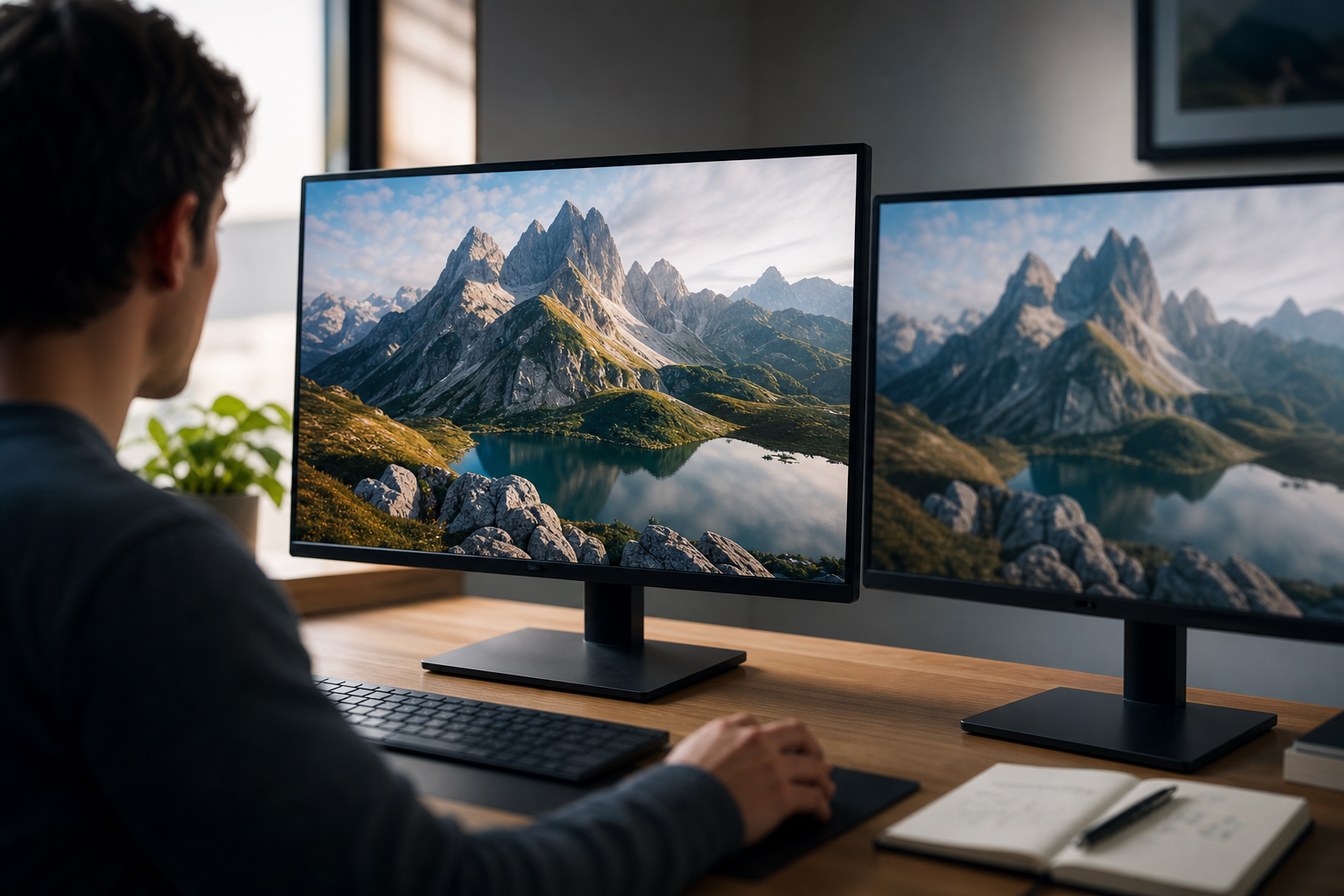
After that, try before committing. Shop where you can test returns, or visit a store and view a 27-inch QHD next to 24-inch 1080p and 32-inch 4K. Your eyes decide fast. If you feel less eye strain and can read small text at 100% scaling, that’s a strong signal.
- Test hardware: run 1440p for a day.
- Check sources: apps, streams, and cables.
- Plan ahead: buy for the next 5 years.
- Try in person: compare 27-inch QHD to your current screen.
Ultimately, tie the choice to your daily flow, not a spec race. As this beginner guide 1440p resolution has shown, the right pick is the one that keeps you comfortable and productive for hours at a time.
Key Takeaways
Before you check out a cart, pause and recap the big points that will steer you to the right screen.
1440p means 2560×1440 pixels, or 3.69 million pixels total, 78% more than 1080p. On a 27-inch screen at arm’s length, that extra detail is easy to see without scaling. You get cleaner text, smoother curves, and more room for side-by-side work. In games, 1440p strikes a smart balance between sharpness and frame rate, so mid-range GPUs stay in the fight.
Moreover, the best choice depends on your use case. If you live in spreadsheets, code, or timelines, 1440p reduces scrolling and zooming. If you run surveillance, more pixels per tile help both manual review and AI analytics. And if you want pure speed for e-sports, a fast 1080p panel can still win, for less.
- 1440p is QHD: 2560×1440 at 16:9.
- 27 inches is the sweet spot for sharp, readable text.
- Mid-tier GPUs handle 1440p well; tune game settings for 120–165 Hz.
- More pixels need more bitrate and storage—plan the math.
- Try it first: your eyes are the best judge.
As a result, your next monitor won’t be a guess. You’ll know why it fits, how it feels, and what it will do for your work or play in 2026.
What to Do This Week
Set aside a few short sessions to turn insight into action without blowing your budget.
- Day 1–2: Audit your workflow. List the 3 apps you use most and how many windows you keep open. Note any spots where you zoom to read or squint at small UI.
- Day 3: Test-drive QHD. Borrow a 27-inch 1440p monitor or visit a store. Open your files and sites. Check if you can run 100% scaling and still read fine print. Try a game you know well and watch the frame rate.
- Day 4: Do the throughput math. If you stream or manage cameras, write down bitrate × hours × cameras × retention days. Confirm your network and storage can keep up without drops.
- Day 5: Price and decide. Compare a solid 27-inch 1440p monitor against a 4K option. If clarity gains feel real and your GPU is happy, place the order. If not, adjust: pick a faster 1080p for e-sports or save for a 4K if you sit close to a 32-inch.
- Day 6–7: Cable check and desk fit. Make sure you have DisplayPort or HDMI that supports your target refresh rate. Measure your desk depth so your eyes sit at a comfortable arm’s length.
- If you want a quick second opinion on a mixed setup, or you’re weighing clarity for analytics and security, reach out and get tailored advice.
Finally, remember this: the “best” resolution is the one that helps you see more, strain less, and decide faster. Build around that, and your screen will earn its space every single day.