


**Get a free 4K consult today →
Four times the detail changes what you see and what you miss. 4K packs more pixels into the same space, which can reveal small text on a dashboard, a license plate in a frame, or a fine detail in a film scene that 1080p glosses over. This beginner guide 4k resolution explains what 4K is, when you will actually notice the jump, and how to choose gear in 2026 without wasting money.
For a direct answer: 4K means a picture that is 3840×2160 pixels on TVs and monitors, or 4096×2160 in digital cinema, which is about four times 1080p. You’ll see a clear gain if your screen is large, you sit close, or you create or analyze video where details matter.

What Is 4K Resolution and Why Does It Matter?
In plain terms, “4K” on TVs and computer displays usually means 3840×2160 pixels, called UHD or 2160p. In movie theaters, DCI 4K is 4096×2160. Both are widely documented in Wikipedia’s 4K resolution overview. Think of pixels like megapixels in phone cameras. More pixels give you more detail to work with, but you only notice it when your eyes can resolve it.
Moreover, the jump from 1080p to 4K is big. 1080p is 1920×1080, which is 2,073,600 pixels. UHD 4K is 3840×2160, which is 8,294,400 pixels. That’s 4× the pixel count. As a result, fine edges look cleaner, text stays crisp at larger sizes, and you can crop video more in editing without it falling apart on a 4K timeline.
However, pixels alone don’t tell the whole story. Pixel density (pixels per inch) and your viewing distance decide whether your eyes can resolve those extra dots. If the screen is small or you sit far away, 4K and 1080p can look the same. On the other hand, if you sit close to a large screen, the 4K image holds sharp detail where 1080p shows jagged edges or blur.
4K vs 1080p in plain math
- 1080p: 1920×1080 = 2,073,600 pixels
- UHD 4K: 3840×2160 = 8,294,400 pixels
- Gain: 4× more pixels to draw the same picture
Furthermore, viewing distance acts like a “detail budget.” Sit closer, and you spend more of that detail. Sit farther, and you leave it on the table. If you’re reading this beginner guide 4k resolution to pick a TV for a couch eight feet away, screen size and seating matter as much as the spec on the box.
How to Decide If You Need 4K: A Step-by-Step Framework
Before you buy, use this five-step check. It takes 10 minutes and can save you a lot.
1.
First, be clear on the job. Is it a TV for movies and sports, a monitor for work and gaming, a camera for content, or a security system for evidence? For TV and film lovers, 4K helps with fine textures and wide shots.
Creators get edit room to crop and stabilize. Security work can improve recognition when conditions are right. As you move through this beginner guide 4k resolution, keep that job front and center.
2.
Second, note your diagonal size and how far you’ll sit. Bigger screens and shorter distances highlight 4K. If you use a 27–32 inch monitor at arm’s length, you’ll see the gain. If you watch a small TV across a big room, you may not. For cameras, “screen size” becomes your display and how you review footage.
3.
Third, confirm your content source. Do you stream from services with 4K tiers such as Netflix and YouTube? Do your games render in 4K, or will you upscale? For cameras, will you shoot, store, and edit in 4K? If your library is still 1080p, you may see fewer benefits.
4.
Fourth, check the chain. Your streamer, console, GPU, HDMI cables (HDMI 2.0 or better), and your display all need to pass 4K at the frame rate you want. In addition, streaming 4K needs steady, higher bandwidth than 1080p. If your network dips, you’ll see drops in quality. For editing, you need storage speed, CPU/GPU power, and enough RAM to play and scrub 4K without stutter.
5.
Fifth, match spend to gains you can see. For many homes, a mid-range 4K TV plus a basic sound upgrade beats a top-end panel alone. For creators, a fast SSD and more RAM can matter more than a pricey new lens. For security, plan for camera count, retention days, and cloud costs. Then choose the upgrade that moves your main use case the most.

Common 4K Mistakes That Waste Your Money
- First, buying 4K for a tiny screen you watch from far away. If your eyes can’t resolve the pixel grid, you pay for detail you never see. A modest jump in size or a closer seat would do more than an expensive spec bump.
- Second, ignoring HDR. High Dynamic Range (HDR) can change the look more than extra pixels. It increases contrast and color range, so bright skies don’t wash out and shadows hold detail. If you must choose, a good 4K HDR display beats a no-HDR 4K panel almost every time. If you want the tech details, see High-dynamic-range video for how HDR expands contrast and color space.
- Third, underestimating streaming needs. Ultra HD tiers sometimes cost more and demand steadier bandwidth. If your home Wi‑Fi drops, your show may shift to a lower resolution. Therefore, test on the device you’ll use at the time you watch. If it buffers at night, fix Wi‑Fi or wiring before you chase a new TV.
- Fourth, assuming “all 4K is equal.” It isn’t. A clean, well-lit 4K scene looks great. A noisy, compressed 4K file can look worse than a high-bitrate 1080p master. Moreover, not all 4K cameras have the same sensor size, lens, or low-light results. In security, for instance, a 4K camera in the dark without good lighting can struggle, while a 4MP camera with better optics may beat it.
- Fifth, skipping calibration and setup. Even a superb panel looks flat with wrong settings. Use built-in picture modes for a start, then fine-tune brightness and color. For PCs, set the OS scaling so text stays sharp without eye strain. As this beginner guide 4k resolution stresses, the setup step is where value shows up.
- Buy pixels you can see, not specs you can’t.
- Favor strong HDR over weak 4K.
- Fix network bottlenecks before upgrading screens.
- Judge real footage, not labels.
- Calibrate. Small tweaks, big wins.
Also Read!
How to Choose Face Recognition and License Plate Camera Software for Corporate Campuses
Tools and Platforms That Make the Most of 4K
- For streaming, services like Netflix and YouTube offer 4K catalogs and live 4K streams. The upgrade is clearest on larger screens with HDR content. Therefore, check your plan details and device support. Some apps reserve 4K and HDR for specific tiers, and certain older devices cap out at 1080p.
- For editing, 4K shines in tools like DaVinci Resolve and Adobe Premiere Pro. You can crop 30–40% into a 4K shot yet still export sharp 1080p. In addition, 4K gives you room for stabilization and cleaner keying. However, plan storage and scratch disks. ProRes or DNxHR codecs can eat space fast; a fast NVMe SSD helps timelines stay smooth.
- For displays, match panel to purpose. Budget 4K TVs bring size and clarity for movies and sports. Creator monitors lean on color accuracy, uniformity, and 10‑bit panels.
- Gaming displays add higher refresh rates and variable refresh. As a result, a “best” display depends on what you watch or make. Test tone mapping on real HDR clips, not just demos.
For security and surveillance, 4K adds detail that AI can use for detection and evidence. Tools like VideoraIQ are built to work with existing IP cameras and add cloud AI on top. The platform is cloud-based AI-powered video intelligence and works with existing cameras across 200+ brands.
It focuses on real-time results, 99.4% detection accuracy and under 3 seconds alert latency are cited in its stats, and supports GDPR and HIPAA compliant deployments. Social proof helps here too: 10,000+ cameras monitored and deployments in 7+ countries show it scales in live environments without on‑prem servers.
"We went from finding out about incidents in the morning briefing to being notified in real time. VideoraIQ caught an intruder at 2AM that our overnight guard missed. That one event alone justified the entire platform cost." — Ananya Mehta, Head of Facilities, 200-Camera Corporate Campus
As you weigh options in this beginner guide 4k resolution, remember: a smarter pipeline can beat raw resolution alone. Good lighting, clean encoding, and an AI layer that turns pixels into alerts can raise real-world results more than a single spec jump.
**Book a free security walkthrough →
What to Do Next: Your 4K Action Plan
Here’s a practical path you can finish this week. It blends viewing tests with quick checks of your gear and network.
1.
List your main screen size, how far you sit, and the devices in the chain (streamer/console/PC, receiver, cables, display). Then open a true 4K HDR clip and a 1080p version of the same scene. Watch for differences in edges, textures, and shadow detail.
2.
On your device, play a known 4K source. YouTube’s built‑in “Stats for nerds” can confirm resolution, and most apps show stream quality in settings. If it drops to 1080p, note the time and conditions. For cameras, record a short 4K clip and try editing it on your current PC.
3.
For editing, check one minute of your chosen codec and note its file size. Then scale to your typical shoot length to estimate project storage. For streaming, ensure your home network stays stable during peak hours. Wired Ethernet or better Wi‑Fi placement can make a visible difference.
4.
- If you sit close to a big screen: favor a stronger 4K HDR display.
- If you create: add fast storage and RAM before a new body or lens.
- If you secure sites: add AI that works with your current cameras.
5.
Ensure your HDMI path supports the modes you care about. For HDR, make sure the display and source both support the same formats. For codecs and streaming efficiency, read about High Efficiency Video Coding (HEVC/H.265) to understand how 4K files stay watchable over consumer connections.
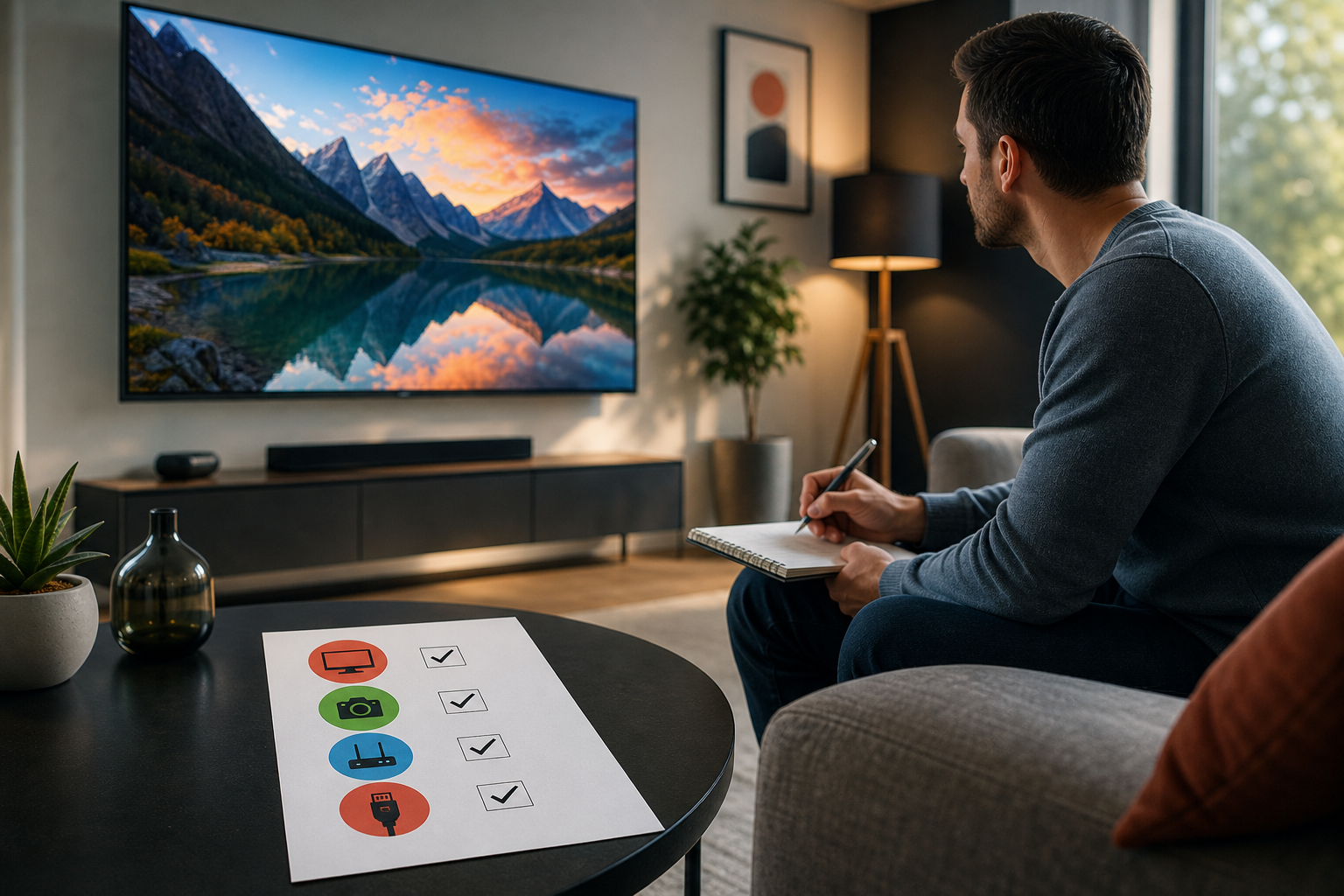
As a final pass in this beginner guide 4k resolution, set a simple rule: upgrade only if you can point to a clear, visible gain in your own space on your own content. If you can’t see it, don’t buy it yet.
Key Takeaways
- 4K is 3840×2160 on TVs/monitors and 4096×2160 in cinema; that’s 4× the pixels of 1080p.
- You’ll notice 4K when screens are larger, you sit closer, or detail is part of the job.
- HDR can change the picture more than resolution; prioritize a quality HDR display.
- Streaming 4K needs plan support and stable bandwidth; test at your peak hours.
- Tools like VideoraIQ can turn high-res feeds into real-time results with cloud AI.
What to Do This Week
Run the five-step audit, play a true 4K HDR clip on your current gear, and note what you can and cannot see. Then fix the network or cable gaps, and only then decide on a screen, camera, or AI upgrade that delivers a visible win.
**Schedule a free 4K planning call →
Sources: 4K formats and definitions are summarized from Wikipedia’s 4K Resolution entry. HDR concepts and benefits are outlined in High-dynamic-range video. HEVC technical context comes from High Efficiency Video Coding.